

Last updated on September 14th, 2026 at 03:09 pm
Hybrid working is now standard practice, yet many organisations still struggle with meeting room frustration. We have all experienced it: ten minutes wasted trying to pass around a laptop cable, audio echoing through tiny speakers, and remote participants feeling left out of the conversation.
A dedicated microsoft teams room solves these headaches by turning any meeting space into an intuitive, one-touch join collaboration hub. Whether you are equipping a small huddle space or refitting a boardroom, this guide covers everything you need to know about hardware, room design, and choosing the right microsoft teams room licence.
Looking to upgrade your meeting spaces?
Browse our complete range of certified Microsoft Teams Rooms Equipment or speak with our audio-visual specialists on 0161 737 9898 for tailored advice.
Table of Contents
What Is a Microsoft Teams Room?
A Microsoft Teams Room (MTR) is a dedicated hardware and software ecosystem designed to transform physical meeting spaces into fully integrated video conferencing hubs. Instead of relying on a single employee’s laptop to host a meeting, the room itself becomes an autonomous Teams participant with its own account, calendar, and dedicated audio-visual hardware.
Users walk into the room, tap a single button on a touchscreen console, and instantly join scheduled meetings without configuring cables, displays, or audio settings.
Microsoft Teams Room vs a Standard Teams Call
While a standard Teams call runs on an individual’s personal device (laptop, tablet, or smartphone), a microsoft teams meeting room system is designed for group collaboration in a shared space.
- Audio & Video Capture: Standard calls rely on a single web camera and laptop microphone, which fail to capture multiple people scattered around a room. A Teams Room uses intelligent wide-angle cameras and ceiling or tabletop microphone arrays engineered specifically for group acoustics.
- User Experience: Standard calls require plugging HDMI cables and USB dongles into a laptop. Teams Rooms use native hardware with touch consoles for one-touch joining, proximity joining from mobile devices, and automated display wake-up.
- Resource Management: Teams Rooms link directly to room resource calendars in Exchange, allowing staff to book the physical room and the video link simultaneously.
What Equipment Do You Need for a Microsoft Teams Meeting Room?
Building a functional microsoft teams meeting room requires combining purpose-built, certified hardware components into a unified system.
Camera, Microphone and Speaker Options
To deliver clear video and voice for remote attendees, your choice of AV hardware is critical:
- Video Cameras: Options range from integrated ultra-wide video bars for compact spaces to pan-tilt-zoom (PTZ) cameras and optical-zoom systems for deep boardrooms. High-end setups feature AI framing, which automatically tracks active speakers or crops in on individual faces (IntelliFrame). Explore our range of Conference Room Cameras.
- Microphones: Tabletop mic pods work well for smaller tables, while ceiling beamforming microphone arrays keep surfaces clean and cover large areas without dead zones. Check out our selection of Conference Microphones.
- Speakers: Integrated soundbars attached to displays work brilliantly in small-to-medium rooms. Larger spaces benefit from built-in wall or ceiling speakers powered by an external amplifier for even audio distribution.
Room Console, Display and Computer
The backend engine and control interface keep the room operating smoothly:
- Compute Unit: A small-form-factor PC (running Windows) or a built-in codec (running Android) that runs the native Microsoft Teams Room application.
- Touch Console: A dedicated tabletop touchscreen placed in the centre of the room. It displays upcoming meetings, provides volume controls, lets you manage participants, and enables one-touch joining. View our standalone Teams Touch Consoles & Controllers.
- Displays: One or two commercial-grade displays. Dual displays allow you to present content on one screen while viewing remote participants on the other. Touch-enabled displays also support Microsoft Whiteboard interactive sessions.
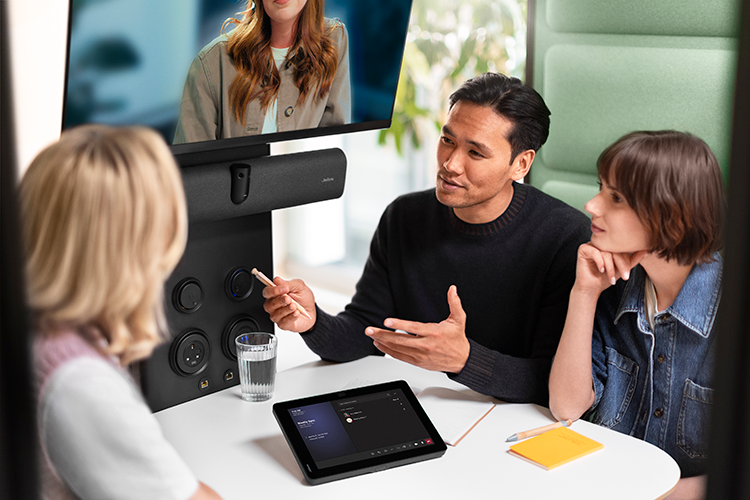
Best Microsoft Teams Conference Room Equipment by Room Size
Selecting the best microsoft teams conference room equipment comes down to matching device capabilities with physical room dimensions.
Small Rooms and Huddle Spaces
Capacity: 2 to 5 people
Recommended Setup: All-in-one Android video bars mounted directly above or below a single display.
Key Features: Compact design, integrated camera, mics, and speakers in one sleek unit. Paired with an 8-inch or 10-inch tabletop touch controller.
Why it works: Simple installation, minimal cabling, and low maintenance while delivering crisp audio and video in tight quarters.
Recommended Products: Explore our Small Room & Huddle Kits or check out popular all-in-one solutions like the Logitech Tap Room – Small.
Medium Meeting Rooms
Capacity: 6 to 11 people
Recommended Setup: Modular video bar or dedicated compute unit with a PTZ camera, separate tabletop touch console, and external expansion microphones.
Key Features: Dual-display support, wider mic pickup range, and AI speaker tracking to capture participants seated further down long tables.
Why it works: Modular components ensure audio remains clear at every seat, while dual screens keep presentations and attendee video feeds separate.
Recommended Products: Discover our range of Medium Meeting Room Bundles, featuring systems such as the Yealink MVC640 and Jabra Pancast 40.

Large Conference Rooms and Boardrooms
Capacity: 12+ people
Recommended Setup: High-performance Windows compute engine, multiple PTZ cameras or multi-lens tracking cameras, ceiling microphone arrays, and integrated room speakers.
Key Features: Direct audio DSP (Digital Signal Processing) integration, flexible multi-screen support, and custom control panels.
Why it works: Engineered to eliminate audio dead zones and sightline obstructions across expansive spaces and long boardroom tables.
Recommended Products: View our high-spec Large Room & Boardroom Systems, including multi-camera setups like the Logitech Tap Room Solution for Microsoft Teams – Large.
Need help picking the right size kit?
We offer complete, pre-configured video conferencing bundles for rooms of every shape and layout.
Microsoft Teams Rooms Basic vs Pro: Which Licence Do You Need?
Every device running a room system requires a dedicated resource account and a valid microsoft teams room licence. Microsoft offers two main tiers, alongside historical options you might come across in older documentation.
Microsoft Teams Rooms Basic
The microsoft teams rooms basic licence provides essential meeting capabilities at no additional cost for eligible hardware.
- Price: Free (included with certified Teams Room devices)
- Limits: Up to 25 devices per tenant
- Features: Core meeting join, wireless content sharing, single display output, whiteboarding, and standard security controls.
- Best for: Small businesses or initial pilots testing a handful of basic huddle spaces.
Microsoft Teams Rooms Pro
The microsoft teams rooms pro license is the comprehensive enterprise solution built for hybrid organisations needing advanced features, management, and scale.
- Price: Paid monthly or annual subscription per device
- Limits: Unlimited devices
- Features: Dual-display support, AI-powered video features (IntelliFrame, speaker recognition), room controls, advanced analytics, remote management via the Teams Admin Centre, and enterprise-grade security controls.
- Best for: Any production deployment, medium-to-large spaces, dual-screen setups, and IT teams needing centralised management.
What Happened to Microsoft Teams Rooms Standard and Premium?
Microsoft retired the legacy microsoft teams rooms standard ($15/mo) and microsoft teams room premium ($50/mo) licences in September 2022. They were replaced by the streamlined Basic and Pro model to simplify procurement and management.
Why Older Articles Mention Standard and Premium
If you read guides written before late 2022, you will often see references to microsoft teams rooms standard and Premium. These legacy tiers are no longer available for purchase. Any organization previously using standard or premium plans has since been migrated to Teams Rooms Pro.
Teams Rooms Premium vs Teams Premium
It is easy to confuse these two products due to similar naming:
- Legacy Microsoft Teams Room Premium: The old room hardware licence that included managed operations from Microsoft.
- Microsoft Teams Premium: A modern user-level add-on licence for individual employee accounts. It unlocks features like AI meeting recaps, custom meeting branding, and advanced webinar controls. It does not license room hardware.
How to Plan a Microsoft Teams Meeting Room Setup
A successful room deployment requires careful preparation before purchasing hardware or pulling cables.
Check Room Layout, Acoustics and Network Readiness
Acoustics & Lighting: Glass walls and hard surfaces cause echo and reverberation. Add soft furnishings or acoustic panels to improve voice clarity. Avoid positioning cameras directly opposite bright windows to prevent backlighting issues.
Cable Routes: Decide early how cables will run between the display, the table console, and the network wall sockets (e.g., floor conduits, under-carpet tracks, or wall trunking).
Network Infrastructure: Ensure high-speed Ethernet drops are available behind the screen and at the table. Wi-Fi can be unreliable for permanent video endpoints. Set up Quality of Service (QoS) on your network to prioritise video traffic.
Choose Certified Teams Rooms Devices
Always select hardware from Microsoft’s official list of certified Teams Room partners. Certified devices undergo rigorous testing to ensure native software integration, reliable firmware updates, and one-touch operations. Explore hardware options from leading brands:
- Yealink Microsoft Teams Rooms Hardware
- Logitech Microsoft Teams Rooms Hardware
- Jabra Microsoft Teams Rooms Hardware
Teams Rooms on Windows vs Teams Rooms on Android
When choosing your room system, you must decide between two core operating platforms: Teams Rooms on Windows or Teams Rooms on Android (MTRoA).
| Feature | Teams Rooms on Windows | Teams Rooms on Android |
| Primary Form Factor | Modular PC + separated AV components | Integrated video bars / touch displays |
| Room Size | Suitable for all sizes (especially large) | Best for small-to-medium rooms |
| Multi-Screen Support | Robust support for 2-3 displays | Typically 1-2 displays |
| Deployment Complexity | Requires cable routing and setup | Quick, plug-and-play installation |
| Third-Party App Joining | Direct Guest Join (Zoom/Webex) | Direct Guest Join (Zoom/Webex) |
When Windows-Based Room Systems Make Sense
Windows-based systems are ideal for large boardrooms, complex multi-camera setups, and spaces requiring custom AV routing. They offer maximum flexibility for complex hardware integrations and advanced management policies. Browse our Windows-Based Teams Room Systems.
When Android Video Bars Make Sense
Android video bars excel in huddle rooms and standard medium meeting spaces. They combine the compute unit, camera, mics, and speakers into a single sleek enclosure, making them cost-effective and remarkably fast to deploy. Browse our Android All-in-One Video Bars.
How Much Does a Microsoft Teams Room Cost?
Budgeting for a microsoft teams meeting room involves three main components: hardware, setup, and ongoing software licensing.
Hardware, Installation and Licence Costs
Hardware:
- Huddle / Small Room: £1,200 – £2,500
- Medium Room: £2,500 – £5,000
- Large Boardroom: £5,000 – £15,000+
Installation & Cabling: Professional installation, display mounting, and cable management typically add £500 to £2,000 depending on room complexity.
Software Licences:
- Basic: £0 (for up to 25 basic rooms)
- Pro: Approximately £33 per room / month (billed annually)
Microsoft Teams Room Buying Checklist
Use this practical checklist before placing your order:
- [ ] Audit the Space: Measured table length, checked seating capacity, and noted glass/acoustic challenges.
- [ ] Select Platform: Chosen between Windows (for large/custom spaces) or Android (for quick deployment in small/medium rooms).
- [ ] Select Certified Hardware: Picked a certified camera, mic, speaker, and touch console tailored to the room size.
- [ ] Verify Network: Confirmed wired Ethernet ports and PoE (Power over Ethernet) are available where needed.
- [ ] Assign Licences: Decided whether microsoft teams rooms basic fits your requirements or if you need a microsoft teams rooms pro license for dual screens and enterprise management.
- [ ] Plan Installation: Confirmed who is mounting screens, running cables, and configuring the room account in Microsoft 365.
Ready to Transform Your Meeting Spaces?
Whether you need a single video bar for a huddle space or a full rollout across multiple offices, our expert team is here to help you select, configure, and install the perfect system.
- Shop Microsoft Teams Room Hardware
- Request a Custom Quote or Consultation
- Call our team today on 0161 737 9898 for expert guidance.